Why Choose Our Screenshot Editor?
In today’s digital world, screenshots are essential for communication, documentation, and content creation. Whether you’re creating tutorials, sharing bug reports, or designing social media content, our free online screenshot editor provides all the tools you need without the complexity of traditional image editing software.
Key Benefits
- 100% Browser-Based: No software installation required
- Completely Free: Full access to all features without hidden costs
- Privacy-First: All editing happens locally in your browser
- Professional Results: Export high-quality images ready for any platform
- Intuitive Interface: Start editing immediately with zero learning curve
Powerful Features for Every Use Case
🎨 Advanced Drawing Tools
Our screenshot editor includes a comprehensive suite of annotation and drawing tools:
- Text Tool: Add crisp, customizable text annotations to highlight key information
- Shape Tools: Insert rectangles, circles, and arrows to draw attention to important areas
- Freehand Drawing: Sketch freely with our pencil tool for custom annotations
- Line Tool: Draw precise straight lines for measurements or connections
- Move & Select: Easily reposition and modify any element on your canvas
Perfect for: Tutorial creators, software documentation, bug reports, and educational content.
🖼️ Flexible Canvas Management
Create screenshots optimized for any platform with our intelligent canvas sizing:
- Pre-configured Social Media Sizes: One-click templates for Instagram, Facebook, Twitter/X, LinkedIn, and more
- Custom Dimensions: Set exact pixel dimensions for your specific needs
- Aspect Ratio Presets: Choose from popular aspect ratios (16:9, 4:3, 1:1, etc.)
- Responsive Scaling: Zoom in and out to work with precision
Perfect for: Social media managers, content creators, and marketing professionals.
🎭 Professional Design Controls
Make your screenshots visually stunning with advanced styling options:
- Padding Control: Add breathing room around your images (0-100px)
- Rounded Corners: Create modern, polished looks with customizable corner radius
- Inset Backgrounds: Add inner spacing with custom colors for depth
- Color Customization: Full control over fill colors, stroke colors, and stroke widths
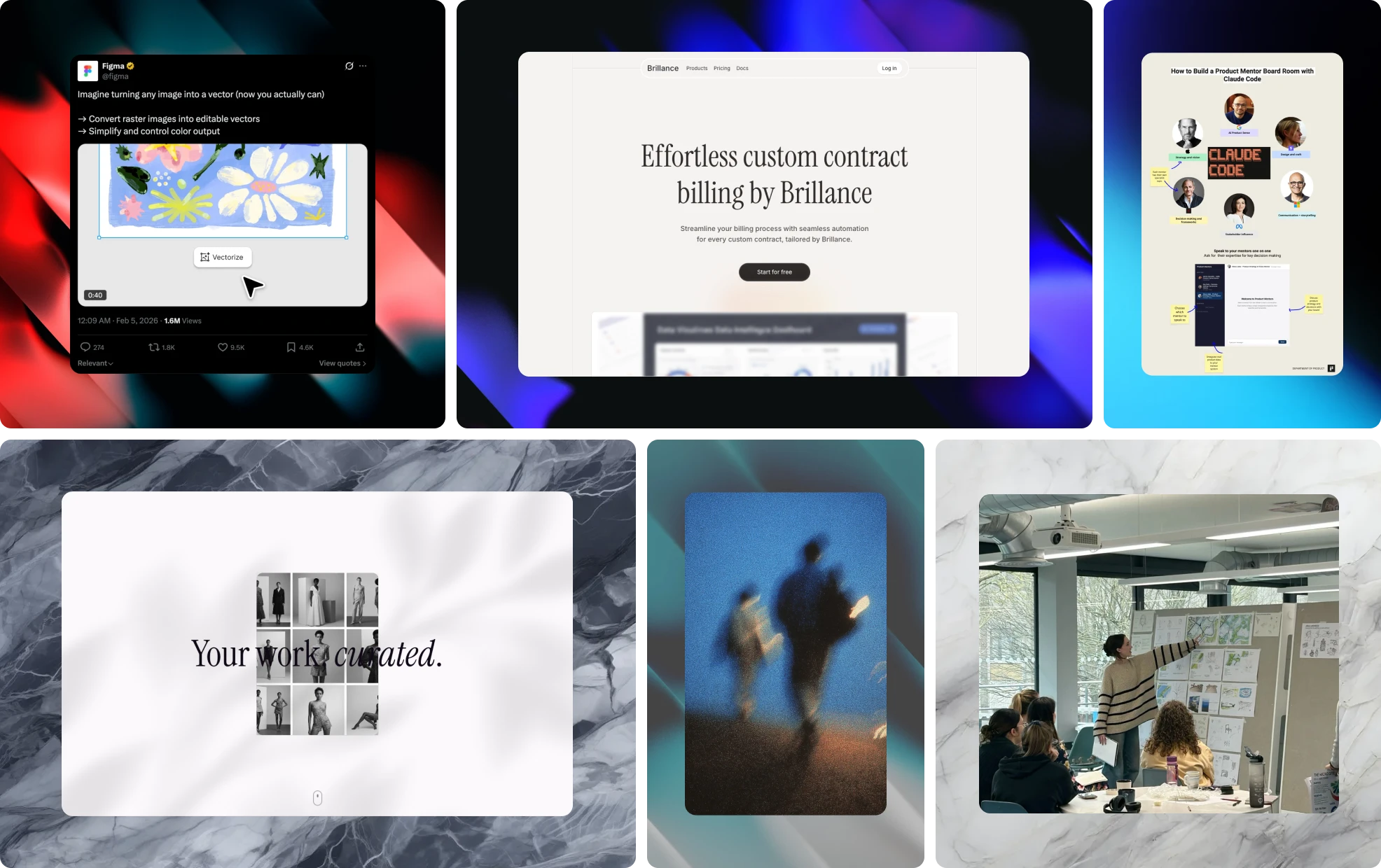
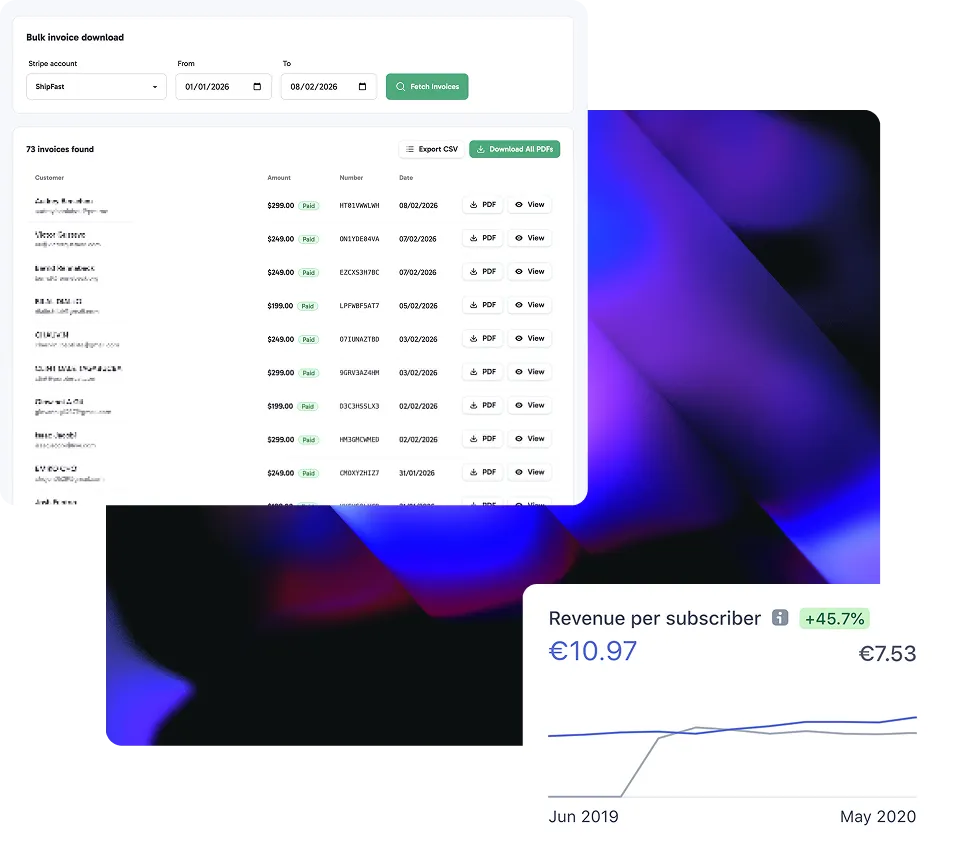
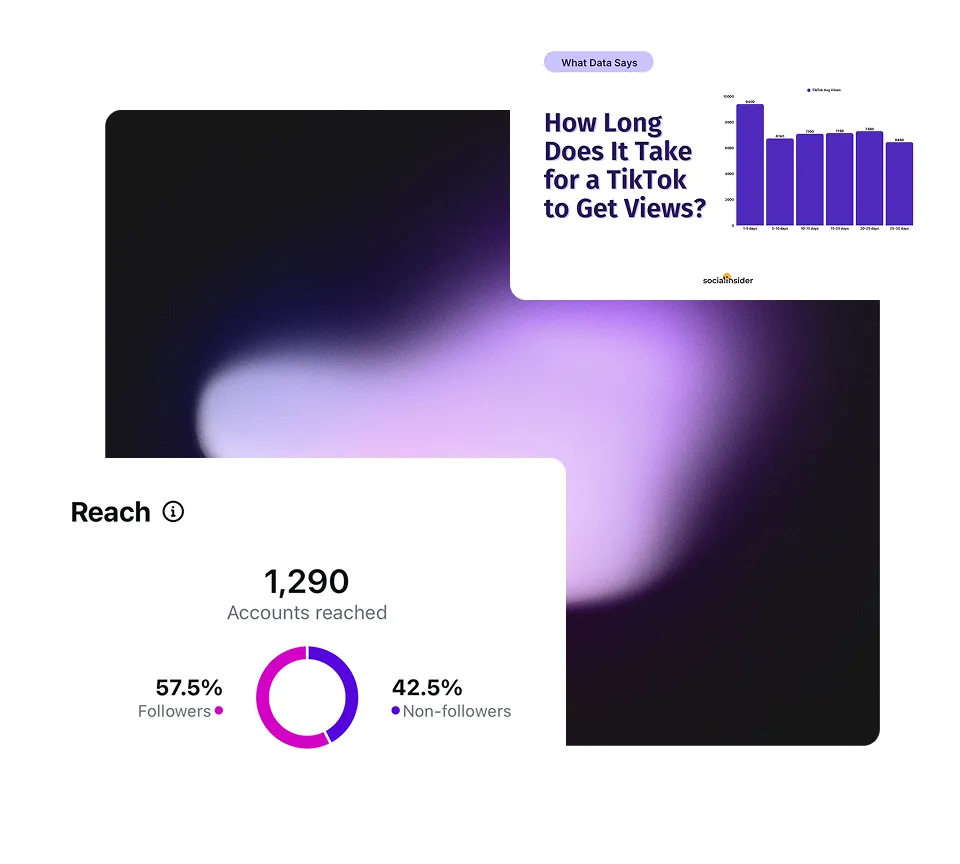
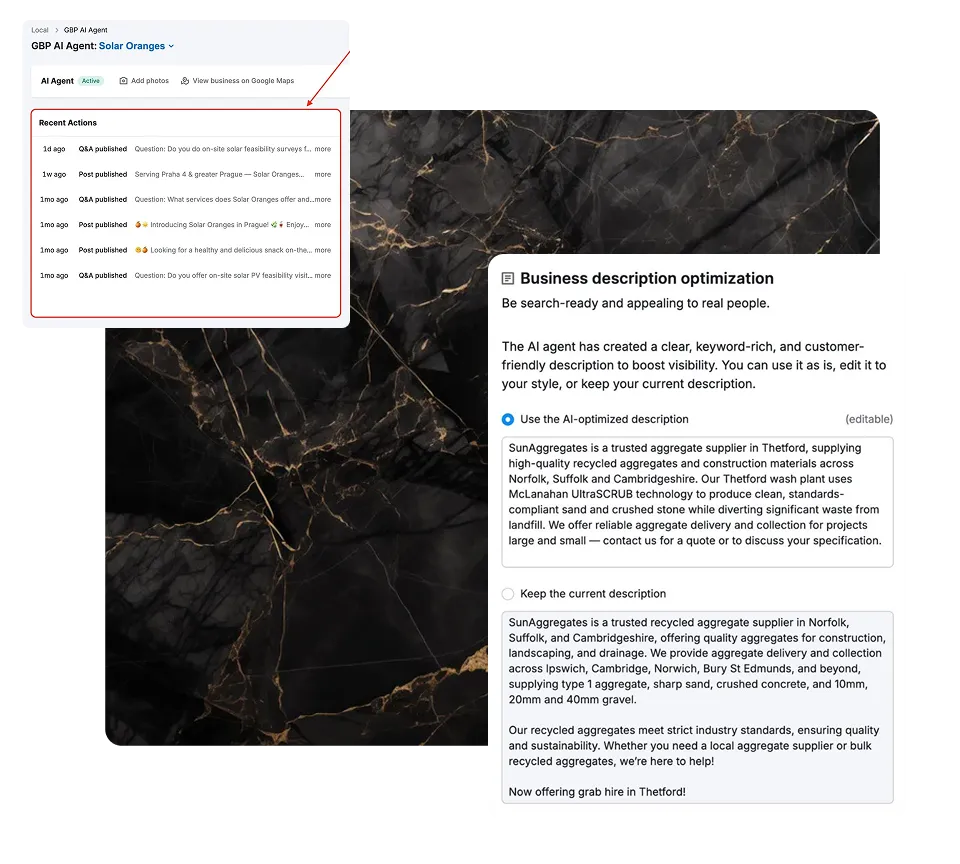
- Background Options: Solid colors, gradients, and premium marble textures
Perfect for: Designers, marketers, and anyone who wants professional-looking screenshots.
🖼️ Multi-Layer Image Support
Work with multiple image layers for complex compositions:
- Main Image Layer: Your primary screenshot or image
- Background Images: Add textures, patterns, or solid colors behind your content
- Overlay Images: Layer decorative elements or watermarks on top
- Drag & Drop Upload: Simply paste or drag images directly into the editor
- Smart Cropping: Automatic fit-to-canvas with cover and contain modes
Perfect for: Product showcases, branded content, and creative compositions.
🎯 Logo & Branding Integration
Maintain brand consistency across all your screenshots:
- Logo Upload: Add your company or personal logo
- Flexible Positioning: Place logos in any corner or custom position
- Size Control: Scale logos to the perfect size
- Opacity Settings: Adjust transparency for subtle watermarking
Perfect for: Businesses, content creators, and brand managers.
📤 Multiple Export Options
Export your edited screenshots in the format that works best for you:
- PNG Export: Lossless quality with transparency support
- WebP Export: Modern format with superior compression
- JPEG Export: Universal compatibility with smaller file sizes
- High-Resolution Output: Export at up to 3x pixel ratio for crisp, sharp images
- Copy to Clipboard: Instantly paste your edited screenshot anywhere
- Direct Download: Save files directly to your device
Perfect for: Everyone—choose the format that matches your workflow.
Advanced Editing Capabilities
Interactive Selection & Transformation
Our editor uses Konva, a powerful 2D canvas library, to provide smooth, professional-grade editing:
- Multi-Select: Select multiple elements at once with Shift/Ctrl+Click
- Rubber Band Selection: Drag to select multiple objects in one motion
- Transform Controls: Resize, rotate, and move elements with precision
- Layer Management: Organize and control the stacking order of elements
- Undo/Redo Support: Experiment freely with full history management
Real-Time Editing
Experience instant visual feedback as you work:
- Live Preview: See changes immediately as you adjust settings
- Reactive Rendering: Smooth performance even with complex compositions
- Smart Caching: Optimized rendering for fast, responsive editing
Keyboard Shortcuts & Paste Support
Work faster with productivity features:
- Paste Images: Ctrl/Cmd+V to paste screenshots directly from your clipboard
- Quick Tool Switching: Keyboard shortcuts for common tools
- Efficient Workflow: Designed for speed and productivity
Use Cases: Who Benefits from Our Screenshot Editor?
1. Software Developers & QA Teams
Create clear bug reports and documentation:
- Annotate error messages with arrows and text
- Highlight UI elements that need attention
- Add context with freehand drawings
- Export in formats compatible with issue trackers
2. Content Creators & Bloggers
Enhance tutorials and how-to guides:
- Add step numbers and explanatory text
- Highlight important buttons or menu items
- Create eye-catching featured images
- Optimize for social media sharing
3. Social Media Managers
Design platform-optimized graphics:
- Use pre-configured sizes for Instagram, Twitter, Facebook
- Add branded elements and logos
- Create consistent visual styles
- Export in web-optimized formats
4. Educators & Trainers
Build engaging educational materials:
- Annotate screenshots for online courses
- Create visual aids for presentations
- Highlight key concepts with shapes and text
- Export high-quality images for print or digital use
5. Customer Support Teams
Provide clearer assistance:
- Mark specific areas in screenshots
- Add step-by-step instructions
- Create visual guides for common issues
- Share easily via email or chat
6. Designers & Marketers
Create professional mockups and presentations:
- Add branded backgrounds and overlays
- Combine multiple images into compositions
- Apply consistent styling across assets
- Export in multiple formats for different channels
Getting Started: How to Use the Screenshot Editor
Step 1: Upload Your Screenshot
Three easy ways to add images:
- Drag & Drop: Drag an image file directly onto the canvas
- Paste: Copy a screenshot (Ctrl/Cmd+C) and paste it (Ctrl/Cmd+V) into the editor
- File Upload: Click the upload button to browse your files
Step 2: Choose Your Tools
Select from the toolbar:
- Click the Move/Select tool to reposition elements
- Choose Text to add annotations
- Pick Shapes (rectangle, circle, arrow) for highlighting
- Use Freehand Draw for custom annotations
- Select Line for precise straight lines
Step 3: Customize Your Design
Fine-tune your screenshot in the sidebar:
- Adjust Canvas Size for your target platform
- Modify Design Controls (padding, corners, inset)
- Add your Logo for branding
- Change Background colors or textures
Step 4: Style Your Elements
When you select a tool or element:
- Toggle Fill on/off and choose fill colors
- Adjust Stroke Color for outlines
- Control Stroke Width for line thickness
Step 5: Export Your Work
Choose your preferred export method:
- Download as PNG, WebP, or JPEG
- Copy to Clipboard for quick pasting
- Select your desired quality and resolution
SEO-Optimized for Discovery
What Makes This the Best Screenshot Editor?
When searching for a screenshot editor online, users need:
✅ Free access without limitations
✅ No software installation required
✅ Professional editing tools that are easy to use
✅ Privacy protection with local processing
✅ Multiple export formats for flexibility
✅ Social media optimization with preset sizes
Our editor delivers on all these requirements and more.
Frequently Searched Terms We Address
- Free online screenshot editor: Completely free with no hidden costs
- Screenshot annotation tool: Full suite of annotation features
- Image editor no download: 100% browser-based solution
- Screenshot markup tool: Professional markup and annotation capabilities
- Social media image editor: Pre-configured sizes for all major platforms
- Screenshot editor with text: Advanced text tool with full customization
- Online image annotator: Comprehensive annotation toolset
- Screenshot beautifier: Professional design controls and backgrounds
Comparison: Why Choose Our Editor Over Alternatives?
| Feature | Our Editor | Desktop Software | Other Online Tools |
|---|---|---|---|
| Price | Free | $50-300/year | Free with limits |
| Installation | None | Required | None |
| Privacy | 100% Local | Local | Server Upload |
| Drawing Tools | ✅ Full Suite | ✅ Full Suite | ⚠️ Limited |
| Social Presets | ✅ Yes | ❌ No | ⚠️ Some |
| Export Formats | PNG, WebP, JPEG | All formats | ⚠️ Limited |
| Logo Support | ✅ Yes | ✅ Yes | ❌ No |
| Multi-Layer | ✅ Yes | ✅ Yes | ❌ No |
| Learning Curve | Easy | Steep | Easy |
Browser Compatibility
Our screenshot editor works seamlessly across all modern browsers:
- ✅ Google Chrome (recommended)
- ✅ Mozilla Firefox
- ✅ Safari (macOS and iOS)
- ✅ Microsoft Edge
- ✅ Opera
- ✅ Brave
Minimum Requirements: Any browser supporting HTML5 Canvas and ES6+ JavaScript
Tips & Best Practices
For Maximum Quality
- Start with high-resolution screenshots: The editor preserves your original quality
- Use PNG for screenshots with text: Maintains crisp edges and transparency
- Export at 2x or 3x for retina displays: Ensures sharp images on high-DPI screens
- Choose WebP for web use: Smaller file sizes with excellent quality
For Efficient Workflow
- Use keyboard shortcuts: Faster than clicking toolbar buttons
- Paste directly from clipboard: Skip the save-and-upload step
- Save preset canvas sizes: Create templates for repeated use
- Use the scale slider: Zoom in for precise edits, zoom out for overview
For Professional Results
- Maintain consistent padding: Creates a polished, professional look
- Use brand colors: Apply your brand palette to backgrounds and elements
- Add subtle rounded corners: Modern aesthetic without being distracting
- Include your logo: Build brand recognition across all screenshots
Future Roadmap
We’re constantly improving the screenshot editor. Upcoming features include:
- Templates Library: Pre-designed templates for common use cases
- Blur Tool: Redact sensitive information with blur effects
- Emoji & Stickers: Add fun elements to casual screenshots
- Batch Processing: Edit multiple screenshots at once
- Cloud Save: Optional cloud storage for your projects (with explicit consent)
- Collaboration: Share edit links with team members
- Advanced Filters: Brightness, contrast, saturation adjustments
- Animation Export: Create animated GIFs from sequences
Conclusion: Professional Screenshot Editing for Everyone
Whether you’re a developer documenting bugs, a marketer creating social media content, an educator building course materials, or anyone who works with screenshots, our free online screenshot editor provides the perfect balance of power and simplicity.
With professional-grade features, privacy-first design, and zero cost, there’s no reason to struggle with complex desktop software or settle for limited online tools.
Start editing now—no download, no sign-up, just professional results in seconds.
Keywords & SEO Terms
Free screenshot editor, online screenshot editor, screenshot annotation tool, image editor no download, screenshot markup, social media image editor, screenshot beautifier, online image annotator, screenshot editor with text, free image editor, browser-based screenshot tool, screenshot enhancement tool, professional screenshot editor, screenshot design tool, web-based image editor
Ready to transform your screenshots? Open the editor and experience the difference that professional tools make—all for free, right in your browser.